Keycloak URL
The default keycloak management URL is : https://<portal>/keycloak
Realms
The both realms in Keycloak can be configure with an OpenID provider :
- Master to authenticate as administrator on Keycloak itself
- Hexagon-HPA to authenticate users on HPA portal and Webview
The OpenID can be identical or different
OpenID specification
There is a lot of different capabilities and option in the OpenID procotol, be sure to validate the integration with your OpenID enterprise solution regarding :
- OpenID flows
- user management
- role
- security between HPA keycloak and OpenID provider
Add OpenID to a Realm
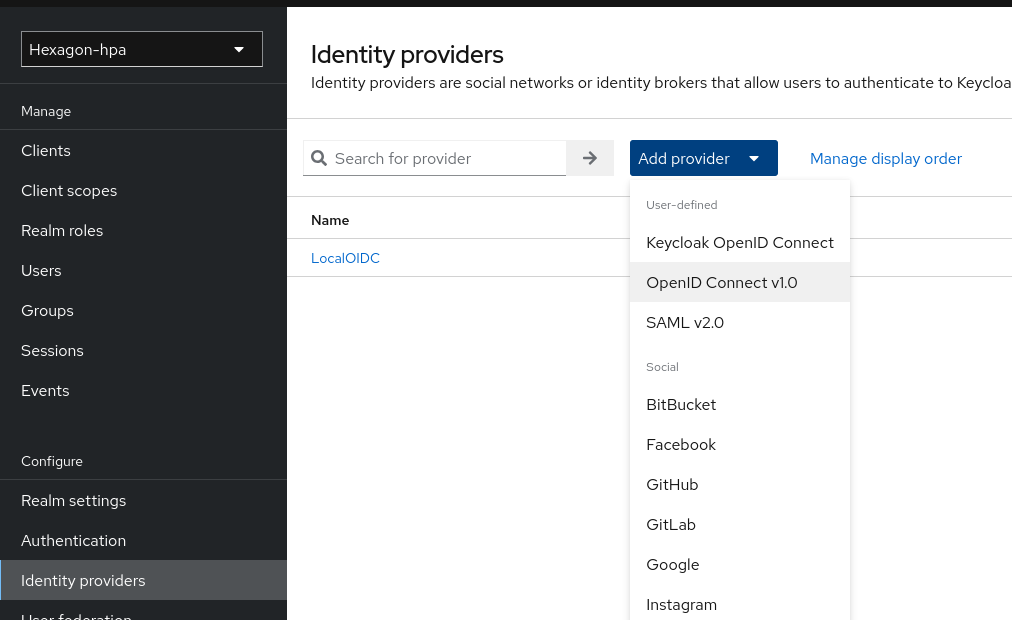
For OpenID authentication :
- open the
Hexagon-HPArealm - open
Identity Providersin the left menu - click on
Add provider - select
OpenID Connect v1.0
- Enter the OpendId information
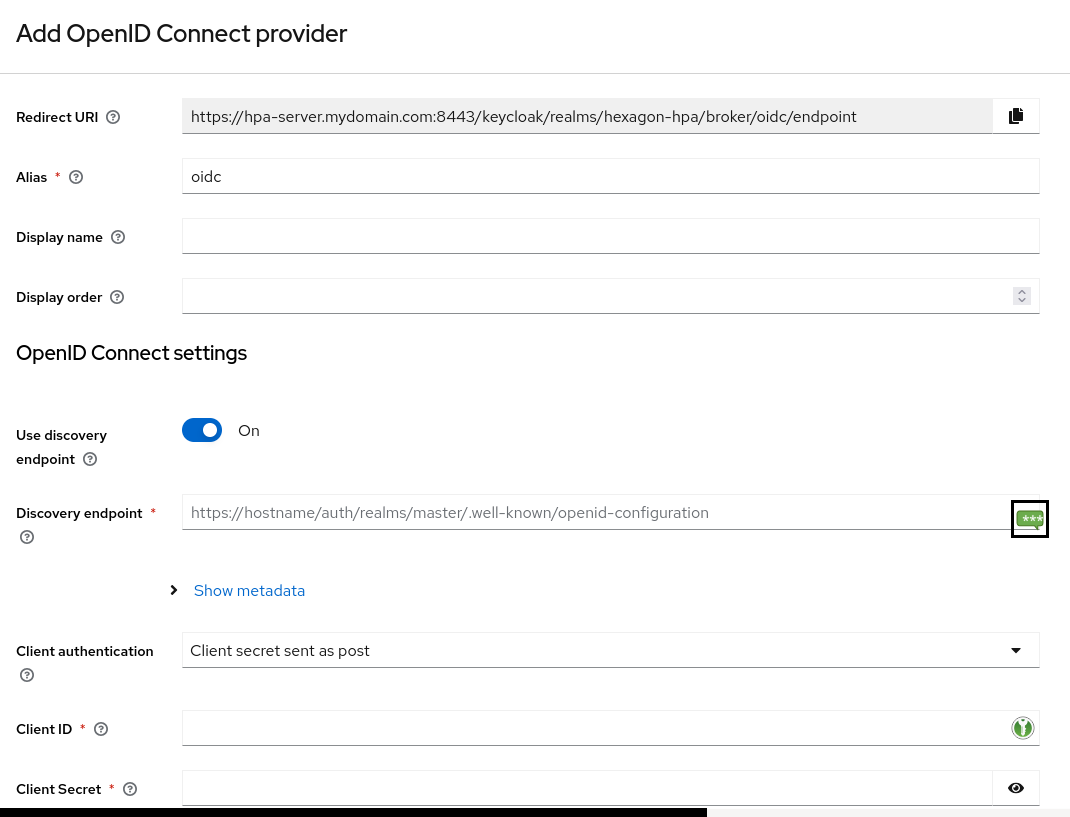
OpenID settings
Usually the information needed for Active Directory are :
- OpenID provider endpoint
- OpenID provider discovery endpoint
- OpenID provider client and secret for HPA
- Trust Email : On
- Sync mode : import
Other options exist according to your OpenId configuration
Configure carrefully First login flow
First login flow
After 1st connection, keycloak creates a copy of the user in its local database.
By default, keycloak offer first broker login which ask the user to validate name, email of the users.
Keycloak then has a copy of the user in its database.
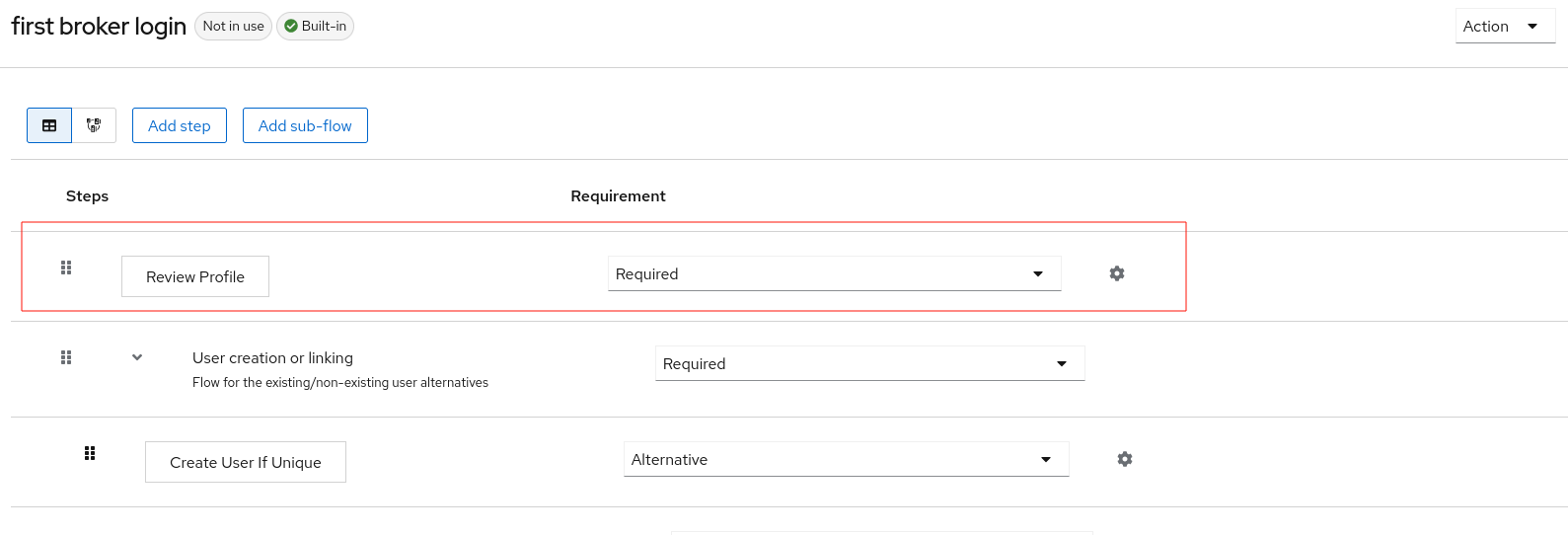
To have a better handling of the user login, create a new Authentication flow in :
- open the
Hexagon-HPArealm - open
Authenticationin the left menu - click on end of the line
First broker loginon duplicate

- Remove the first step
Review Profile
- Go back to
Identity providers><your new provider> - Go to
First login flow - Select the new authentication flow
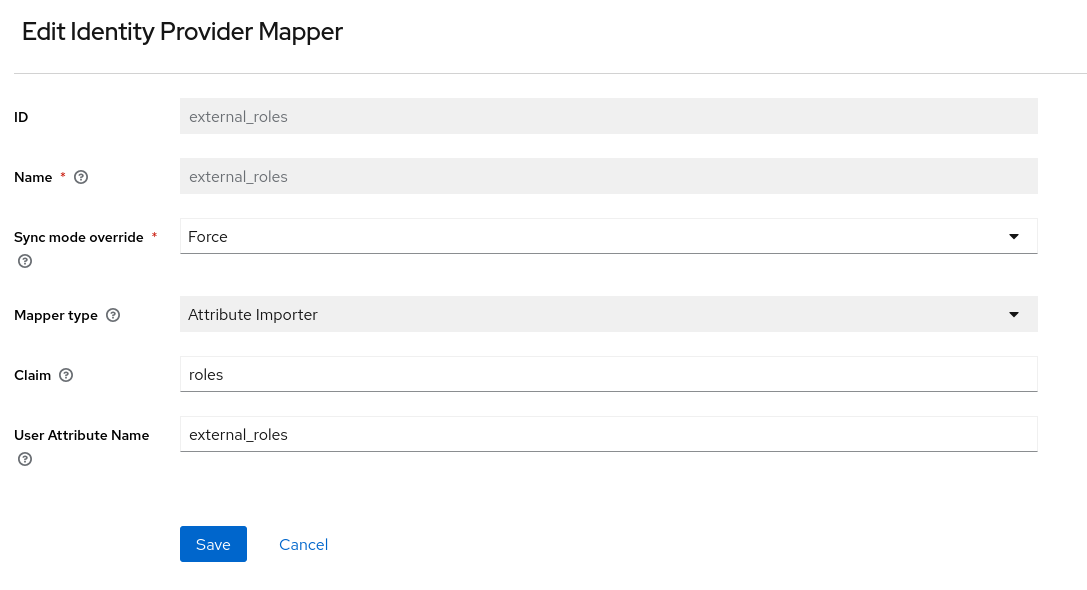
OpenId role mapping
- Go to
Identity providers><your new provider> - Go to
Mappers - Click on
Add Mapper
- ID :
external_roles - Name :
external_roles - Sync mode override :
Force - Mapper type :
Attribute Importer - Claim :
roles - User Attribute Name :
external_roles
Client role mapping
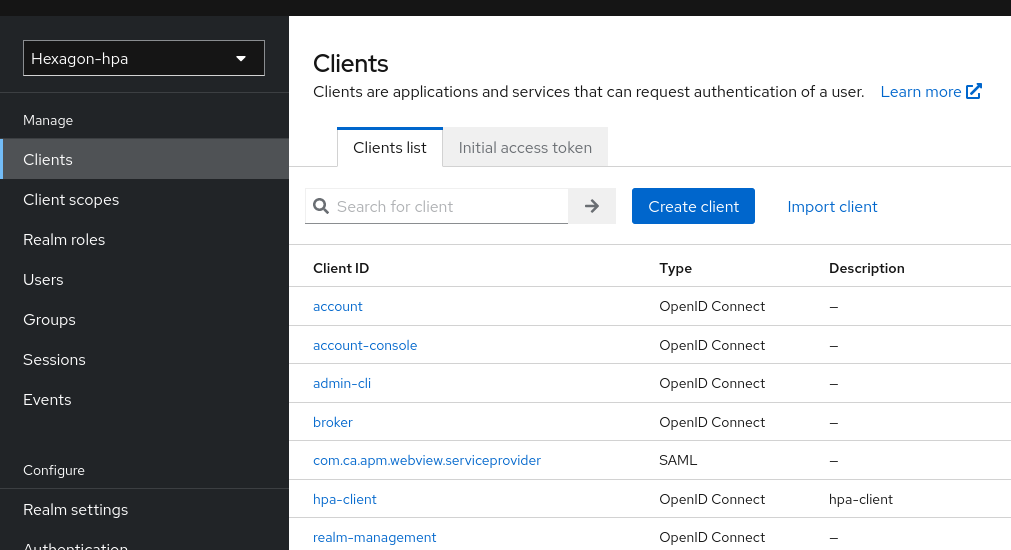
Open hpa-client
Go to Keycloak > Realm Hexagon-Hpa > Clients > hpa-client
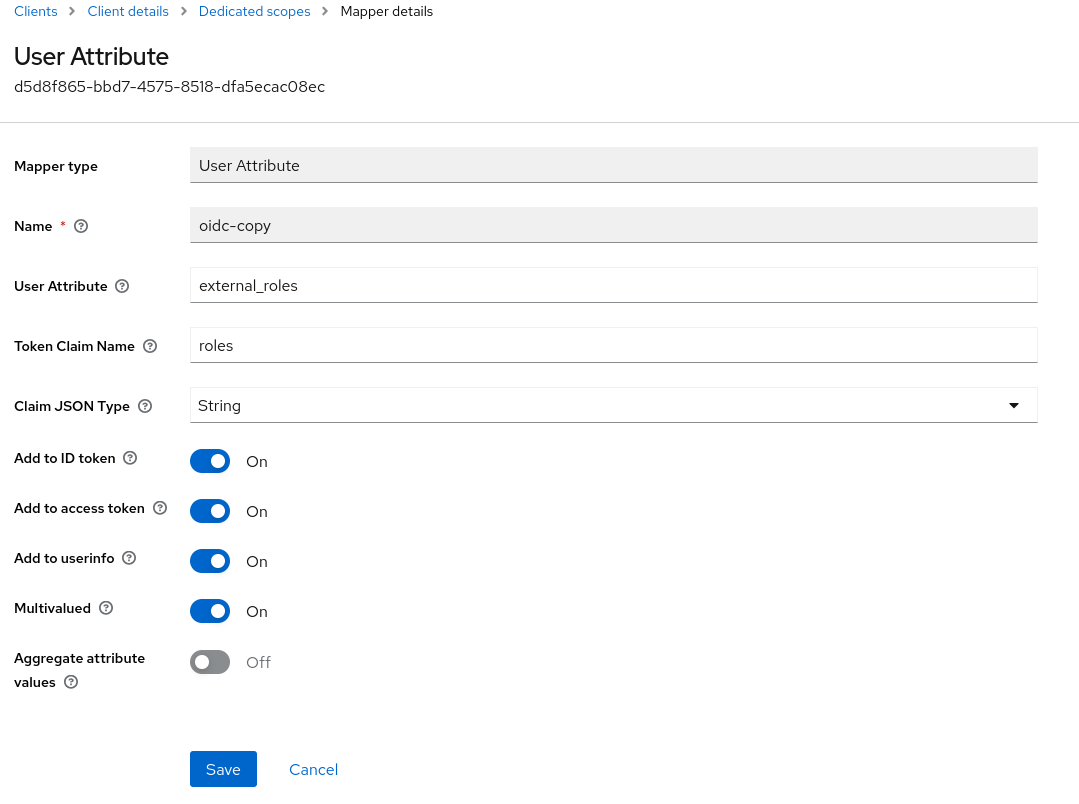
OpenID client dedicated scope
Then goto to Client scopes > hpa-client-dedicated
3. Click on Add Mapper
- Mapper type :
User Attribute - ID :
oidc-copy - User Attribute :
external_roles - Token Claim Name :
roles - Claim JSON Type :
json - Add to ID token :
True - Add to access token :
True - Multivalued :
True -