Scheduled task alerts enable monitoring of Calypso scheduled tasks directly from the HPA Portal, with notifications when something goes wrong.
Three types of alerts are available:
| FAILURE | END DURATION | LIVE DURATION | |
|---|---|---|---|
| Purpose | Detect when a task fails | Detect when a completed task ran too long | Detect when a running task is taking too long |
| When it triggers | As soon as a task failure is detected | After the task finishes, if its total execution time exceeded the threshold | While the task is still running, as soon as its current execution time exceeds the threshold |
| What is monitored | Task failure status | Task execution time (after completion) | Task execution time (in real time) |
| Notification action | Yes | Yes | Yes |
| Data collection action | No | No | Yes |
End Duration vs. Live Duration: End Duration checks the total execution time once the task has finished. Live Duration monitors execution time while the task is still running, enabling early reaction before completion. Live Duration is suited for early warnings; End Duration is suited for post-completion analysis.
Configuration
Before using scheduled task alerts, the configuration must be valid. The configuration is defined in scheduled-task-alerts-configuration.yml and contains three fields:
managementModuleName: "Scheduled Tasks Alerts"
defaultNotificationActionName: "Mail to support Team"
defaultDataCollectionActionName: "Data Collection include Dataserver"
| Field | Description |
|---|---|
managementModuleName |
Introscope management module where alerts are created |
defaultNotificationActionName |
Default email notification action pre-selected in dialogs |
defaultDataCollectionActionName |
Default data collection action pre-selected in dialogs |
If any of these values do not match an existing action or module, the configuration screen displays a warning and editing is blocked until the configuration is corrected.
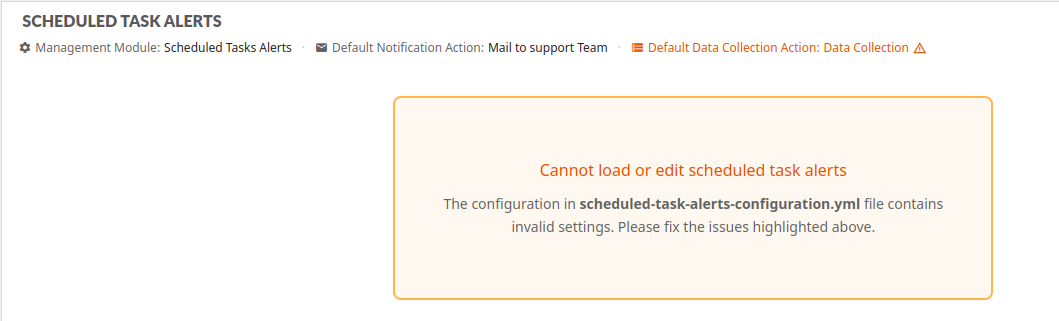
Important: only scheduled tasks with monitoring type scheduletasks_basic or scheduletasks can have alerts. Non-monitored tasks appear in the table but are disabled.
Dashboard
The dashboard displays all configured scheduled tasks in a paginated table. Each row shows the task name, its monitoring type, and the status of each alert type (active, inactive, or not configured) along with the configured actions.
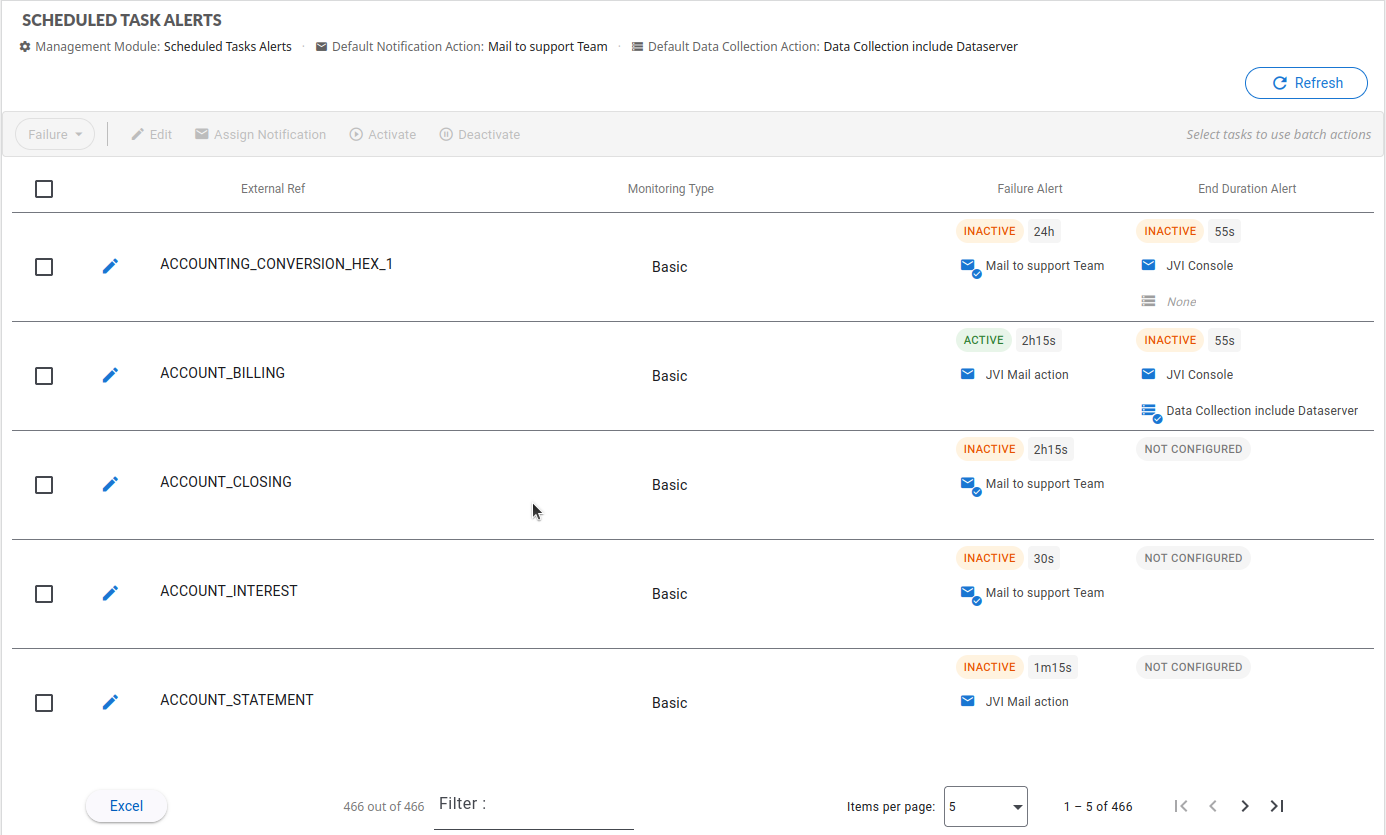
Each alert card in the table displays:
- Status — Active or Inactive
- Threshold — the configured duration threshold (End Duration and Live Duration only)
- Notification action(s) — the notification action(s) assigned to the alert
- Data collection action — the data collection action assigned (Live Duration only). Only one Data Collection can be assigned to a single alert.
Each alert card also provides a delete icon to remove that individual alert.
Refresh
The Refresh button reloads the scheduled tasks list from Calypso. It should be used after adding or removing scheduled tasks in Calypso to keep the dashboard in sync.
Editing a single task
The edit icon on a task row opens the edit dialog. The dialog has one tab per alert type. Each tab allows configuring:
- Active / Inactive toggle
- Duration threshold — maximum acceptable execution time (End Duration and Live Duration only)
- Notification action — notification to send when the alert triggers
- Data collection action — data collection to capture (Live Duration only)
An individual alert can also be deleted from the edit dialog.

Deleting alerts
Alerts can be deleted at three levels:
- Single alert — delete one alert type for a task, either from the alert card on the dashboard or from the edit dialog
- All alerts of a task — delete all configured alerts for a task at once using the delete icon in the actions column
- Batch delete — delete alerts of a chosen type for multiple selected tasks
Deletion is permanent and requires confirmation.
Batch operations
Multiple tasks can be selected using checkboxes. The batch toolbar then allows applying changes in bulk. First select the alert type, then choose an action:
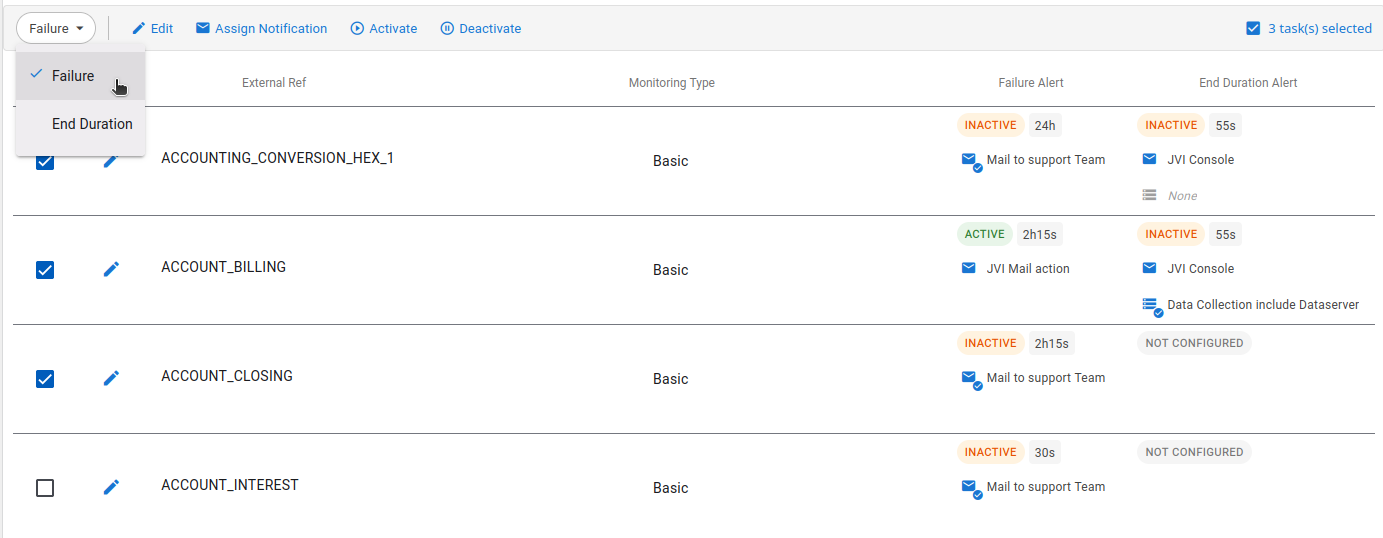
The available batch actions depend on the selected alert type.
Batch edit
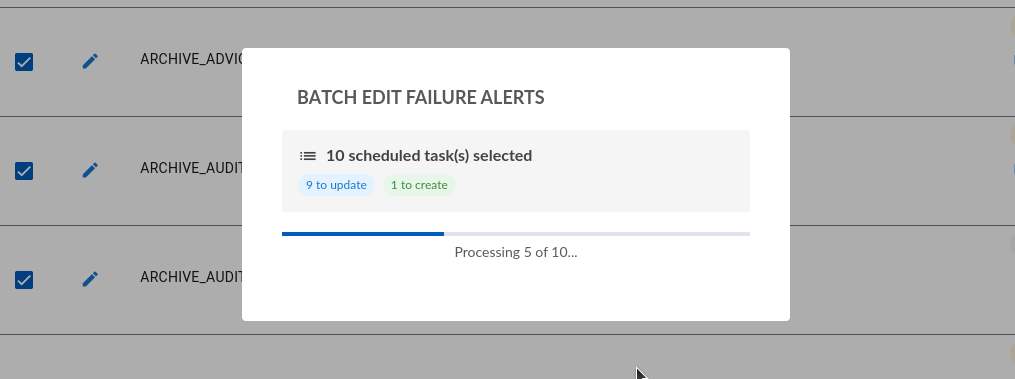
Set duration threshold (where applicable), notification, and data collection for all selected tasks at once. If an alert does not exist yet for a task, it is created. If it already exists, it is updated.
Assign notification
Quickly assign a notification action to selected tasks. If an alert does not exist yet, it is created automatically.
Assign data collection
Quickly assign a data collection action to selected tasks. Available for Live Duration only.
Activate / Deactivate
Toggle the active state of existing alerts for selected tasks.
Delete
Delete alerts of the selected type for all selected tasks.
Batch progress
During batch processing, a progress indicator shows how many tasks have been processed, how many succeeded, and how many failed. The dialog stays open until the batch completes. Individual failures do not stop the batch — all selected tasks are processed.
Duration configuration
The Failure alert does not require any duration configuration — it triggers as soon as a failure is detected.
The End Duration and Live Duration alerts require a duration threshold:
END DURATION — threshold
The threshold defines the maximum acceptable task execution time. If the task’s total duration exceeded this value when it completed, the alert triggers.
- Minimum: 15 seconds
- Maximum: 7 days
- Any value accepted
LIVE DURATION — threshold
The threshold defines the maximum acceptable execution time while the task is still running. If the task’s current execution time exceeds this value, the alert triggers immediately, enabling investigation before the task finishes.
- Minimum: 15 seconds
- Maximum: 7 days
- Any value accepted